

Keep the TV you have. Choose a compatible onn. 4K device or Amazon Fire TV Stick, sold separately.
Learn moreHow does ScreenFire work?
Connect your screen, choose your content and publish. Keep every TV current from one place.
Three steps to your screen
Plug in HDMI and power, connect to Wi-Fi, and install ScreenFire. Sign in to connect the player to your business.
Learn moreUse your menus, offers or team updates. Check the content, choose your screens and decide what goes live.
Learn more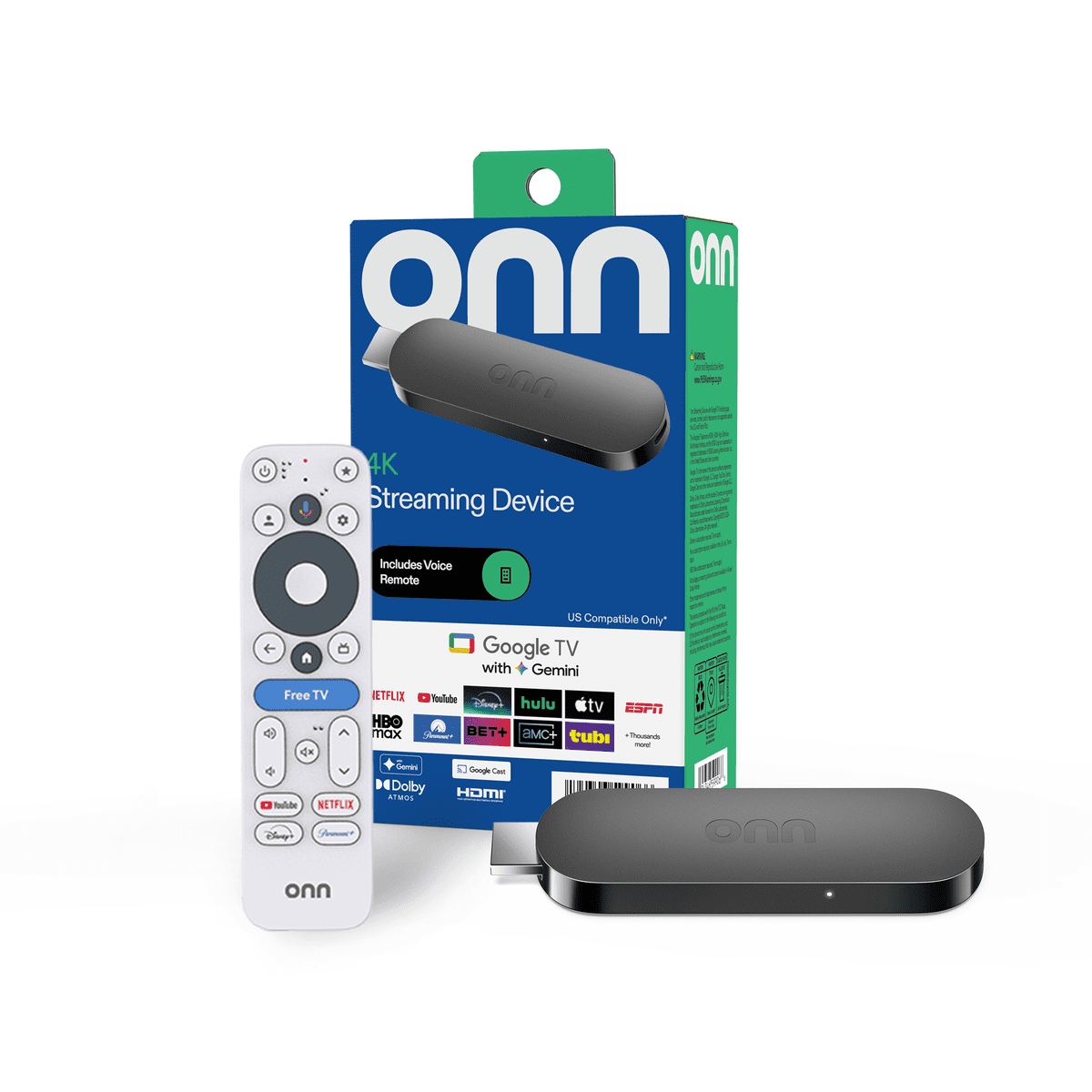 onn. 4K Streaming DeviceSold separately
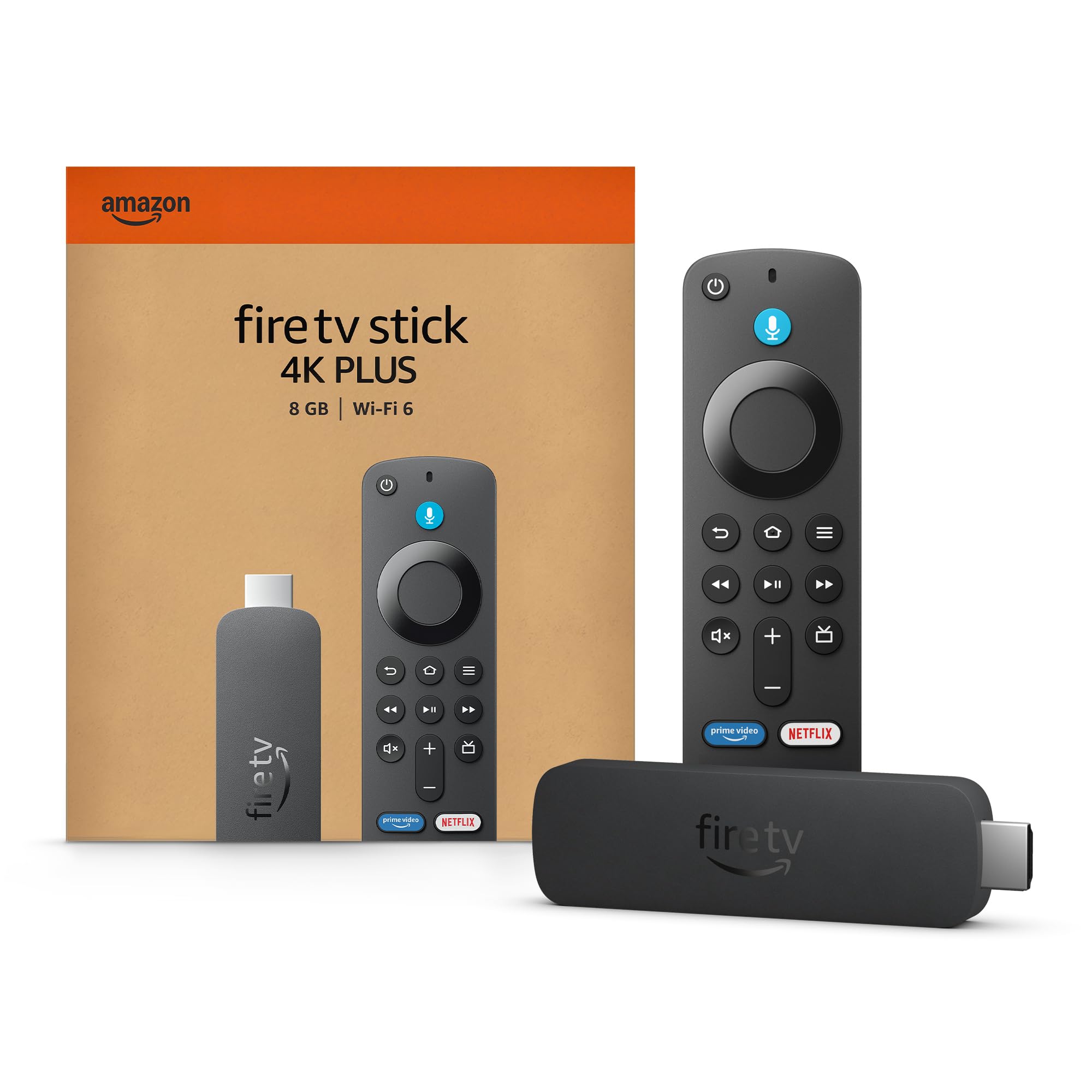 Amazon Fire TV Stick 4K Plus or 4K MaxSold separately
Keep your TV
HDMI. Power. Wi-Fi.
Plug a compatible player into your TV. Install ScreenFire and connect your screen.
Find your player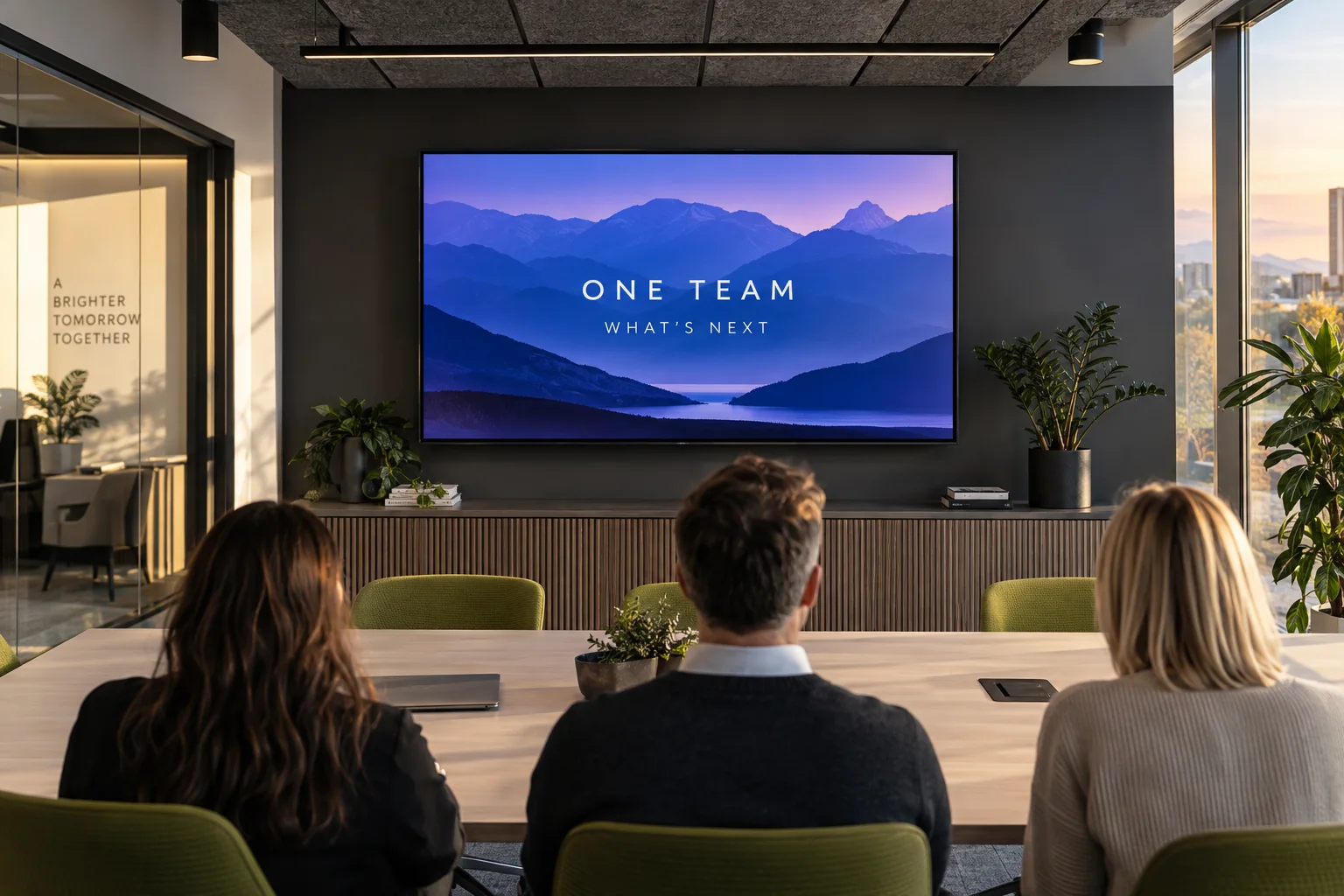
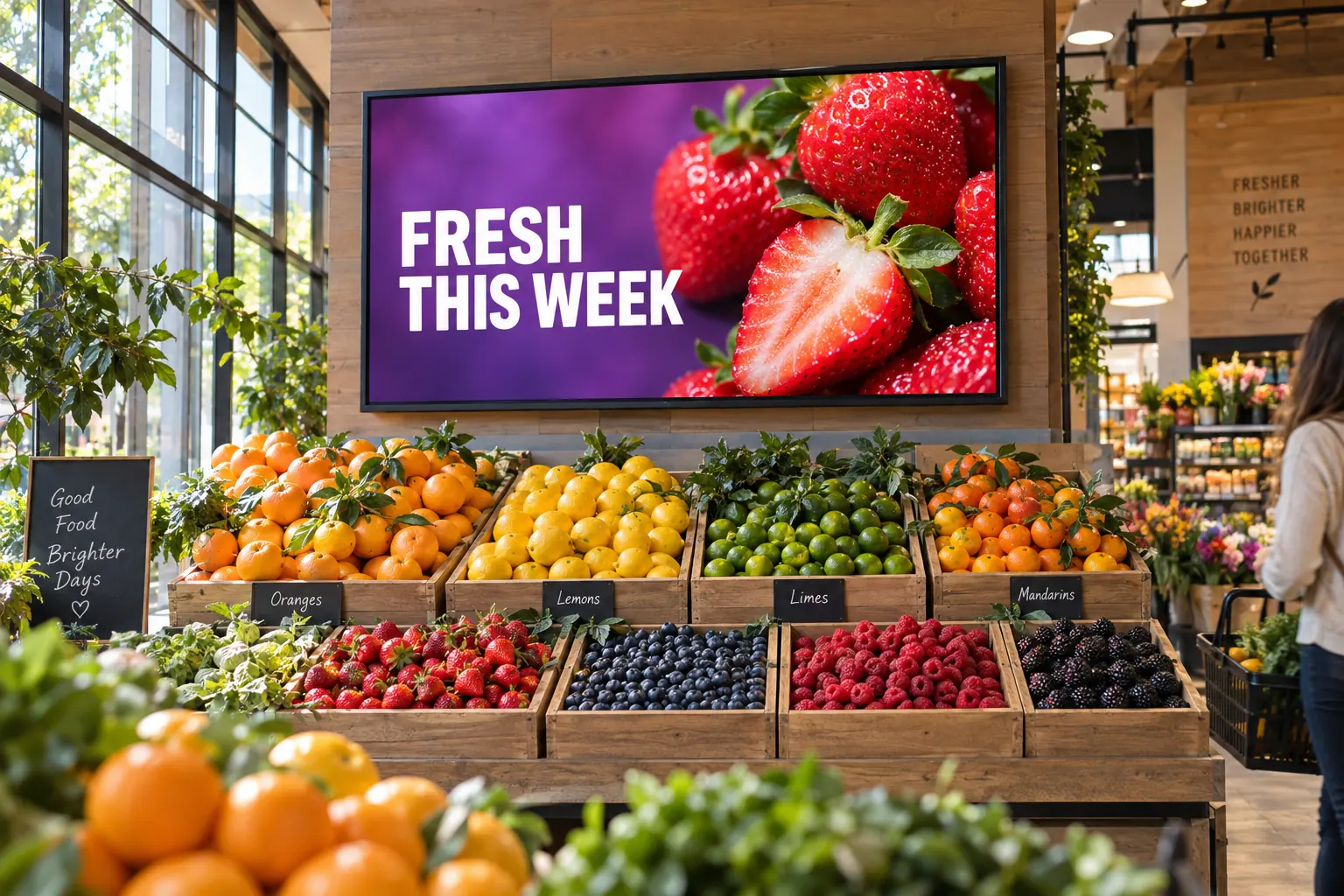
Your content. On every screen.
You decide what goes live.
Connect your tools.
Bring in what your business already knows.
- Toast menus and orders
Bring in current items, prices, availability, and order information.
Available today - Clover subscriptions
Connect Clover with ScreenFire's subscription integration.
Available today - Claude and ChatGPT
Use your connected assistant with ScreenFire on Pro or Business.
Available today
Review every change.
See what should change before it goes live.
- Clean, ready-to-use content
Turn messy source information into clear screen content.
Available today - Suggestions you can review
See the proposed change and approve it before publishing.
Available today - More automatic safeguards
Block unsafe or unsuitable changes before they reach a screen.
Roadmap
Publish to your screens.
Send the update to the right screen.
- Screen planning
Choose the display, location, and time for each update.
Available today
Check your screens.
Keep track of playback.
- Reliable publishing
Keep approved content available and spot screens that need help.
Available today - A record of what played
Confirm what appeared instead of relying only on the schedule.
Limited release
Connect the tools you use.
Connect Toast, Clover, Claude and ChatGPT. Toast menu boards and Claude/ChatGPT connectors are included on Pro and Business.
See what’s included Live menu boards
- Subscription integration

 Use your own subscription
 Connect through ChatGPT
- Google TV · Screen playback
- Fire TV · Screen playback
- Android · Phone management
- Web · Screen management
Also on the Apple App Store for iPhone.
Before your first screen.
What equipment do I need?
A supported TV or compatible HDMI player, power and Wi-Fi.
How do I get started?
Sign in to ScreenFire, connect your screen and review the content you want to publish.
Does ScreenFire publish without my approval?
Your team reviews and approves content before publishing. Pro and Business also support live Toast menu boards; automatic updates after each sync use no credits.
Can I try it for free?
Free includes 25 monthly credits and up to 10 screens. Paid plans add more credits and features, with no per-screen subscription fee.
Where can I use ScreenFire?
Restaurants, shops, hotels, services and workplaces. Automatic updates need a supported integration.
Which plan includes Toast, Claude and ChatGPT?
Pro and Business. See pricing for allowances.
Where can I get help?
Contact the ScreenFire team or read our common questions.