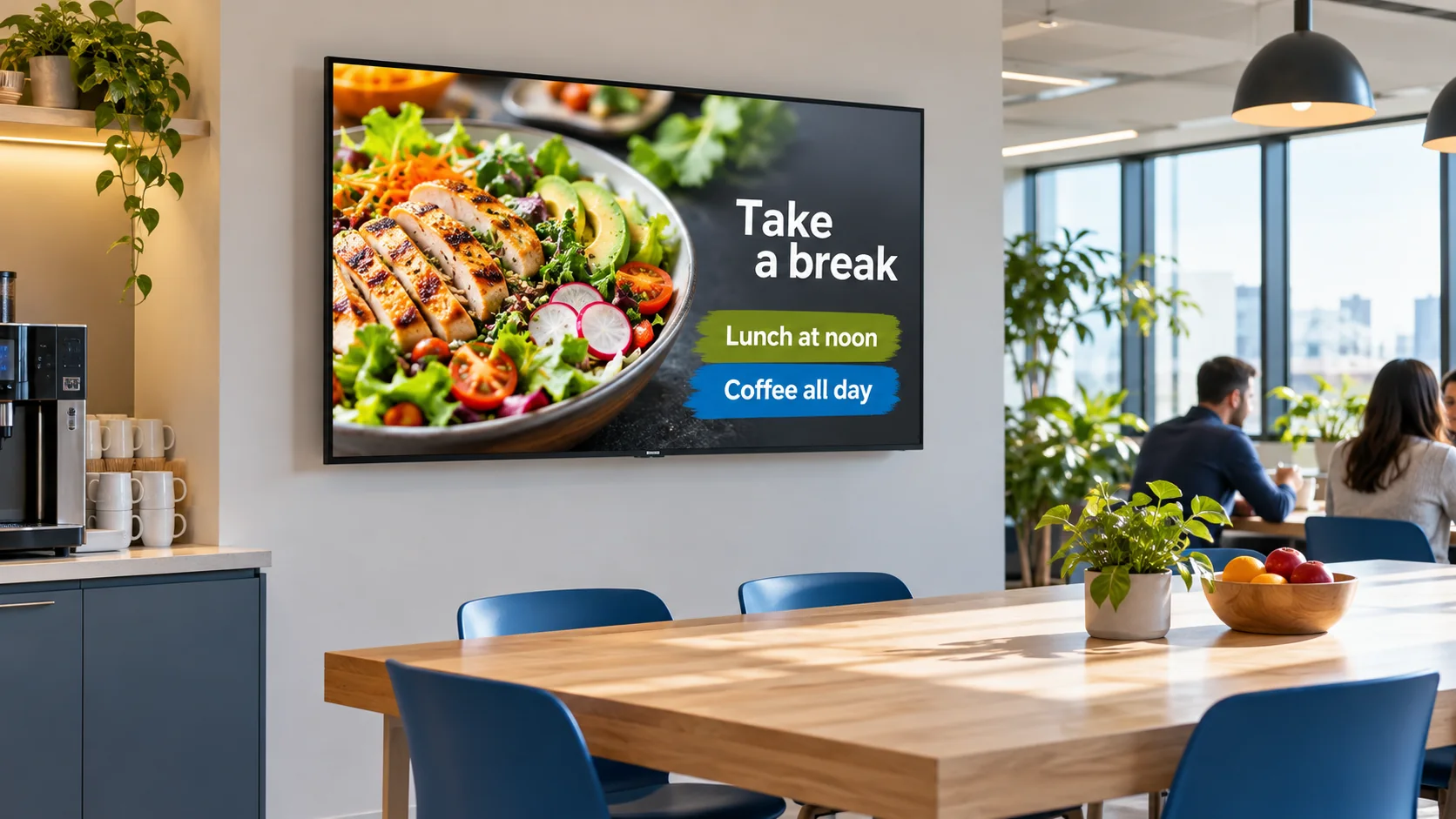
Keep every menu screen accurate and useful.
Use current restaurant information to prepare and approve useful menu updates.
Free includes 25 monthly credits. No per-screen subscription fee.
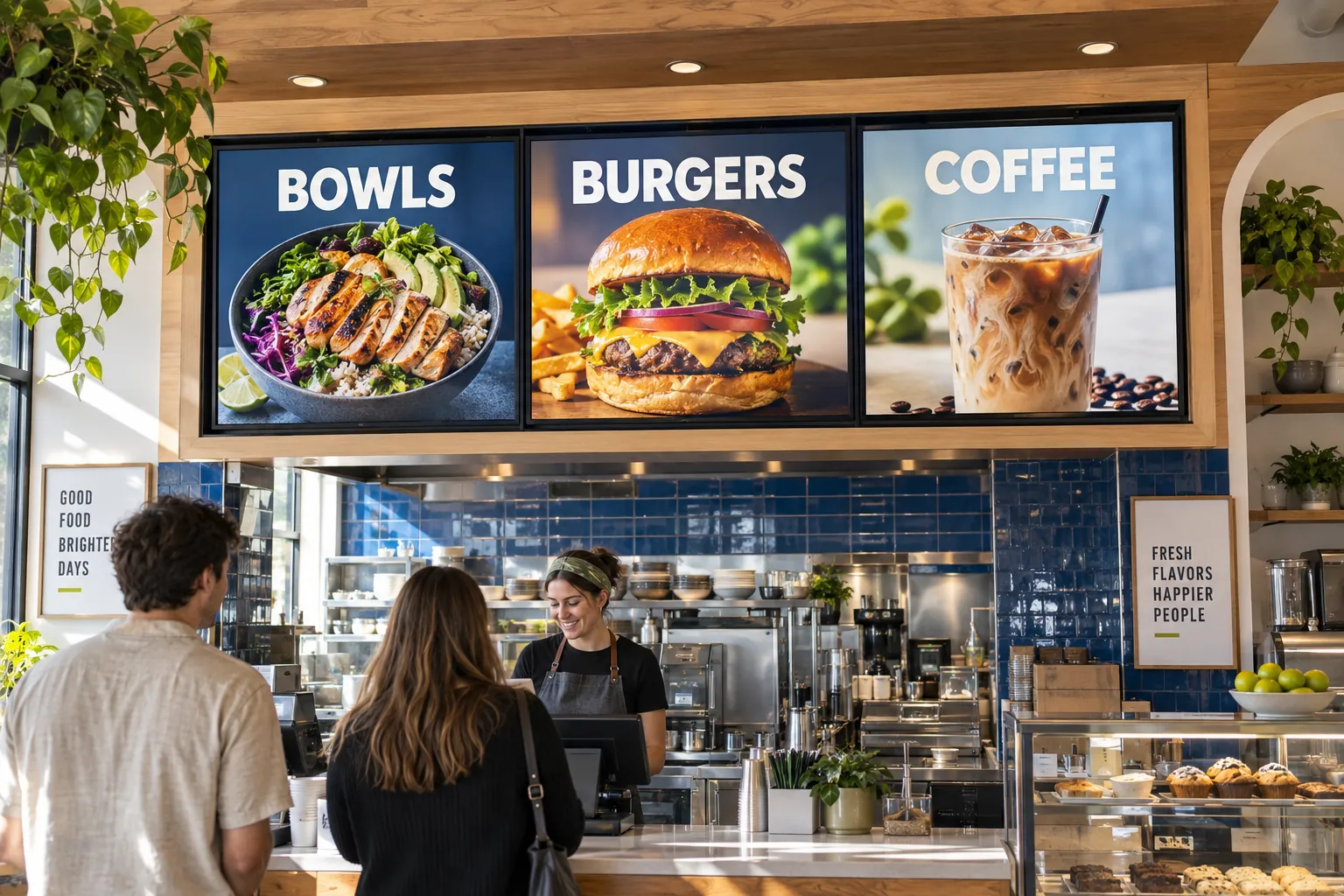
What should your screens show?
Start with what the restaurant already knows.
Bring in current menu items, prices, availability, orders, and kitchen capacity.
See a screen exampleGive an offer a clear place.
Check the menu, availability and timing. You decide what goes live.
See a screen exampleStop showing an unavailable item.
Hide unavailable items, feature useful choices, and change content with the time of day.
See a screen exampleShow each offer at the right time of day.
Check the service window before publishing.
See a screen exampleGive each display one clear job.
Choose each screen’s content. Review it before publishing.
See a screen example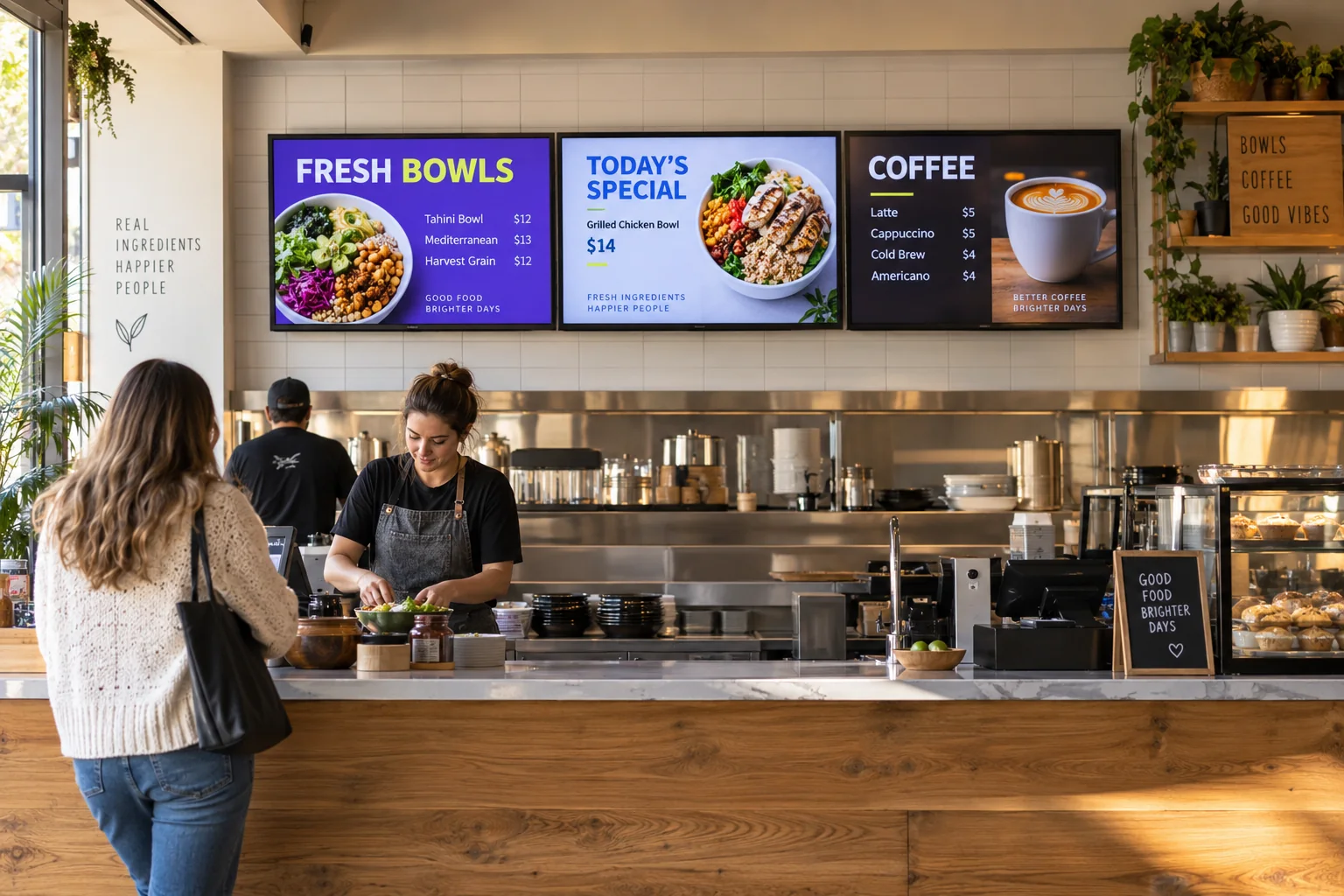
At the counter. Across the dining room.
Menus and offers for the places your guests look.
Your content. Or your connected menu.
Without a connected menu
Publish your own content. Choose the menu, offer or announcement.
- Enter the items and prices you want to show.
- Check availability before each update.
- Review the content before publishing.
- Publish your approved changes to connected screens.
With a connected menu
Connect Toast on Pro or Business for live menu boards.
- Bring current items, prices and availability from Toast.
- Review what goes live on your screens.
- Automatic board updates after each sync use no credits.
- Toast live menu boards are included on Pro and Business.
Try it on your own screens.
- 25 credits
- Included each month on Free
- 10 screens
- Connect up to 10 screens on Free
- No per-screen fee
- Up to 100 screens per business on paid plans
- Your approval
- You decide what goes live
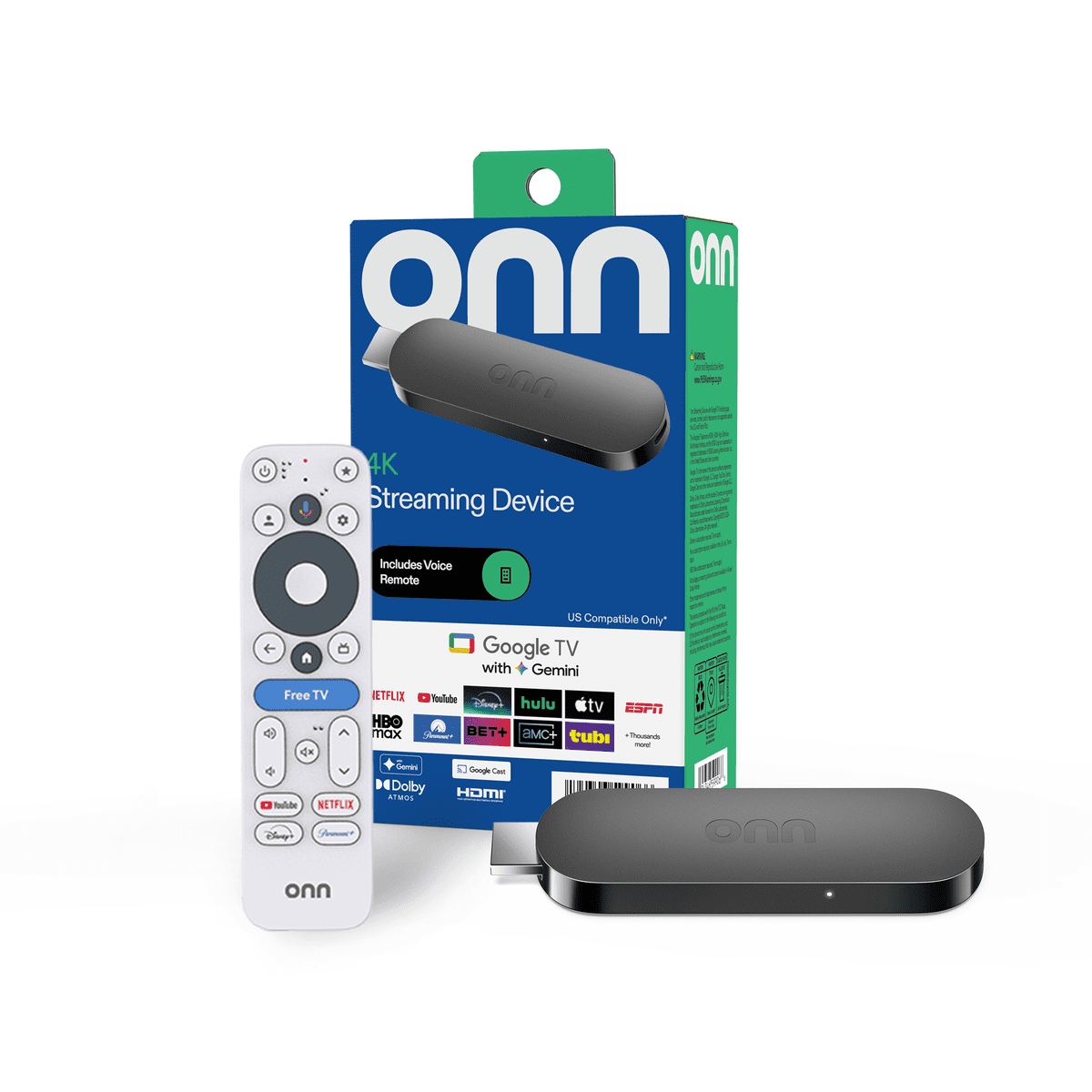 onn. 4K Streaming DeviceSold separately
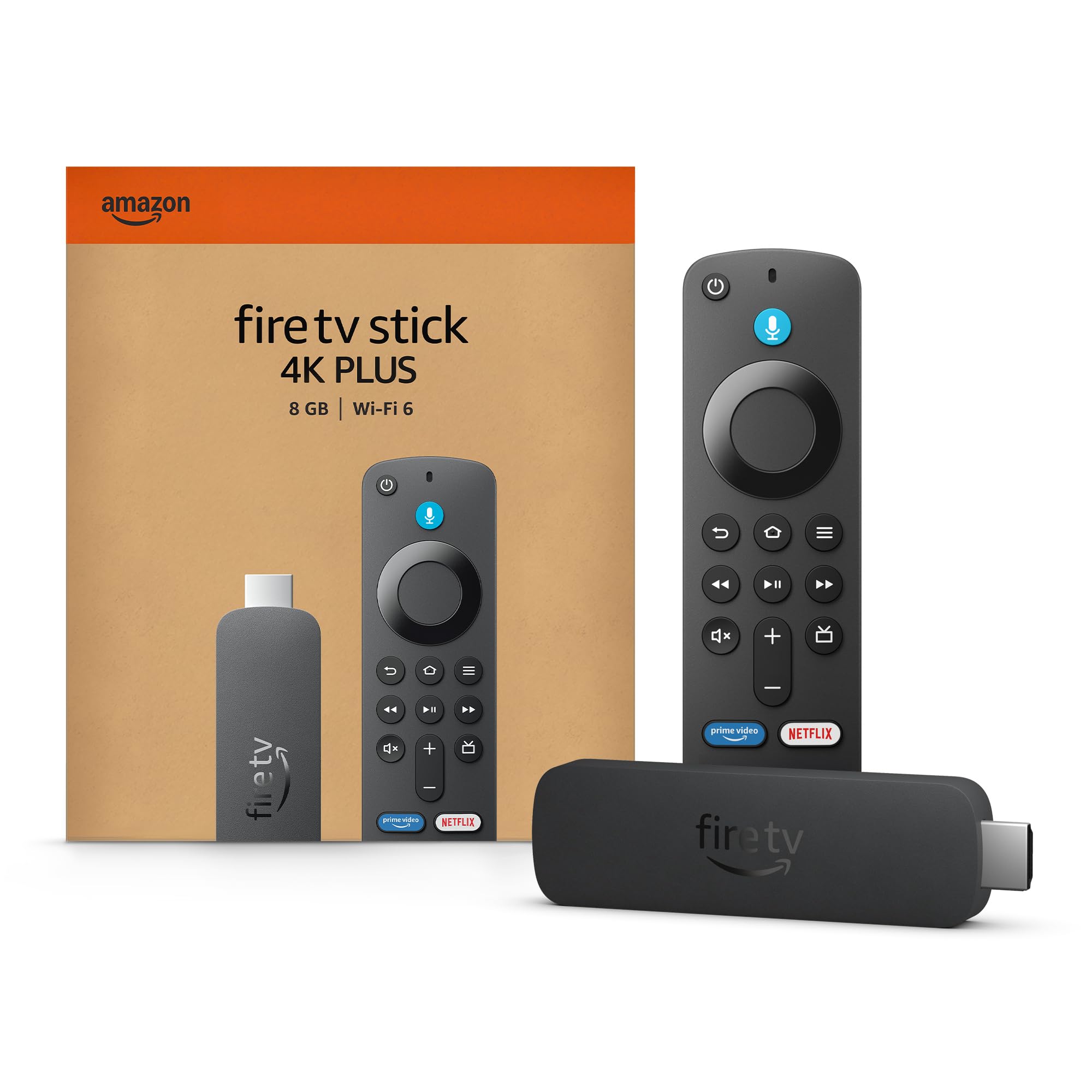 Amazon Fire TV Stick 4K Plus or 4K MaxSold separately
Change the menu only when the condition calls for it.
Hide unavailable items, feature useful choices, and change content with the time of day.
Keep your TV. Add a compatible HDMI player, power and Wi-Fi.
A restaurant screen should reflect what can be ordered now—not what was true when a playlist was scheduled.
Find your playerThree steps to your screen.
- 01
Connect
Bring your content and current restaurant information together.
- MenuItems and prices
- AvailabilityWhat can be sold now
- OrdersWhat guests are choosing
- CapacityWhat the kitchen can make
- 02
Review
Check the menu, availability and timing behind the suggestion. Your team decides what goes live.
- 03
Publish
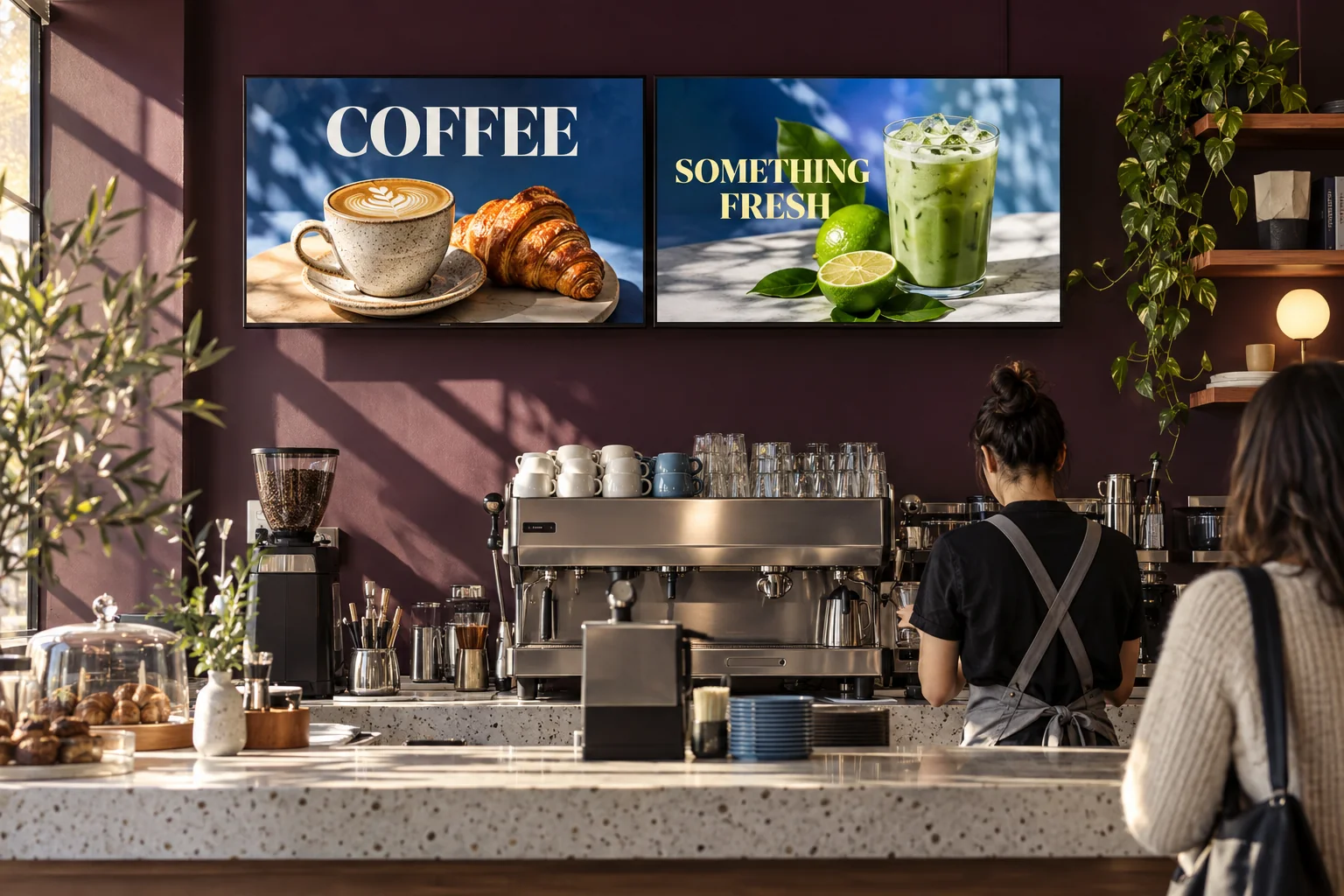
Send approved content to your connected screens. Give each display one clear job.
Connect the tools you already use.
Connect Toast, Clover, Claude and ChatGPT. Toast menu boards and Claude/ChatGPT connectors are included on Pro and Business.
See what’s included Live menu boards
- Subscription integration

 Use your own subscription
 Connect through ChatGPT
- Google TV · Screen playback
- Fire TV · Screen playback
- Android · Phone management
- Web · Screen management
Also on the Apple App Store for iPhone.
Give each screen a clear job.
Browse menu examplesHover a row to pause its movement. Touch or focus to stop both rows and browse every setting with Tab or horizontal scrolling.
- A menu at the window Give guests a clear view before they order.
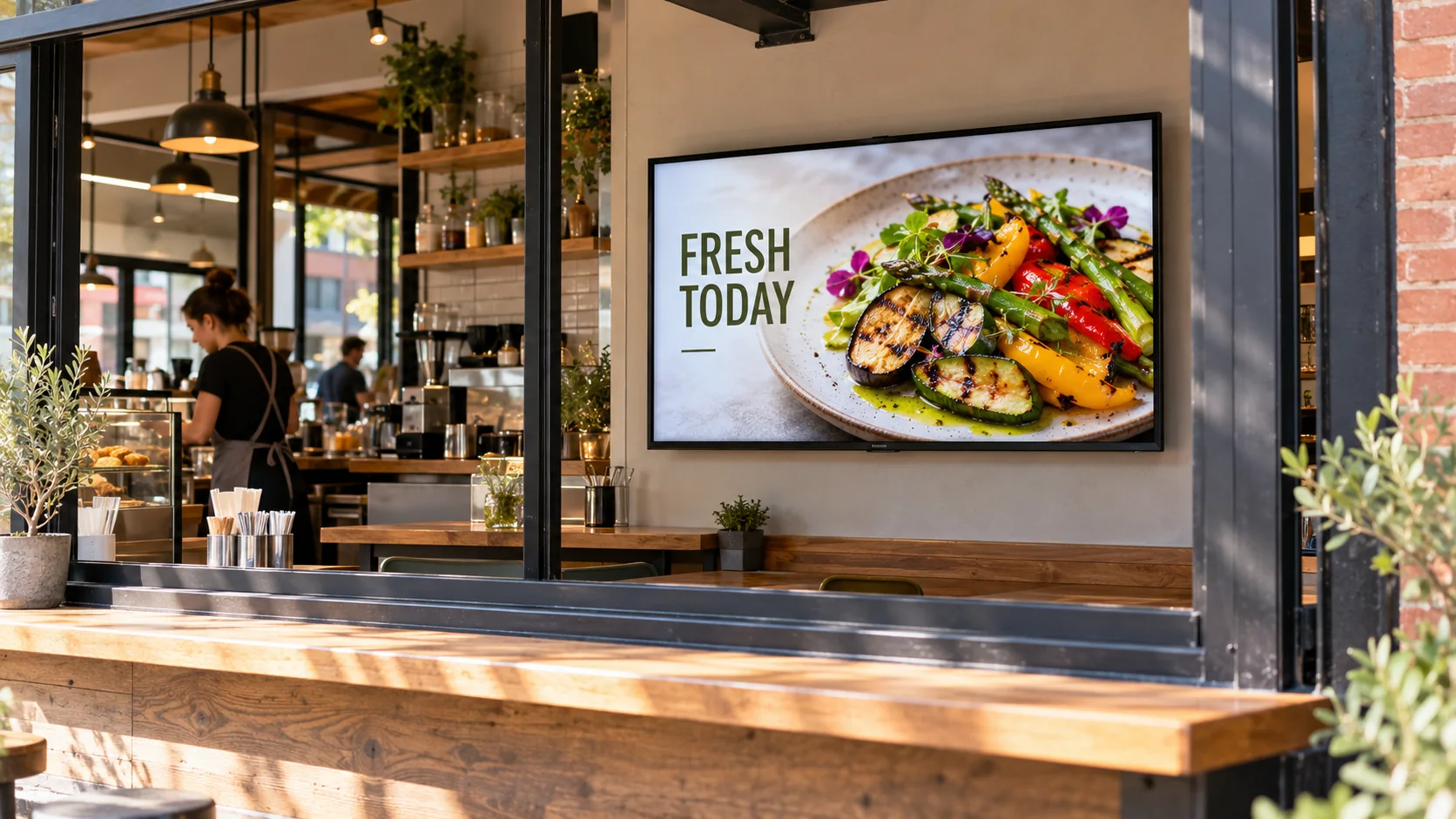
- An offer at the counter One timely offer. Checked before it goes live.
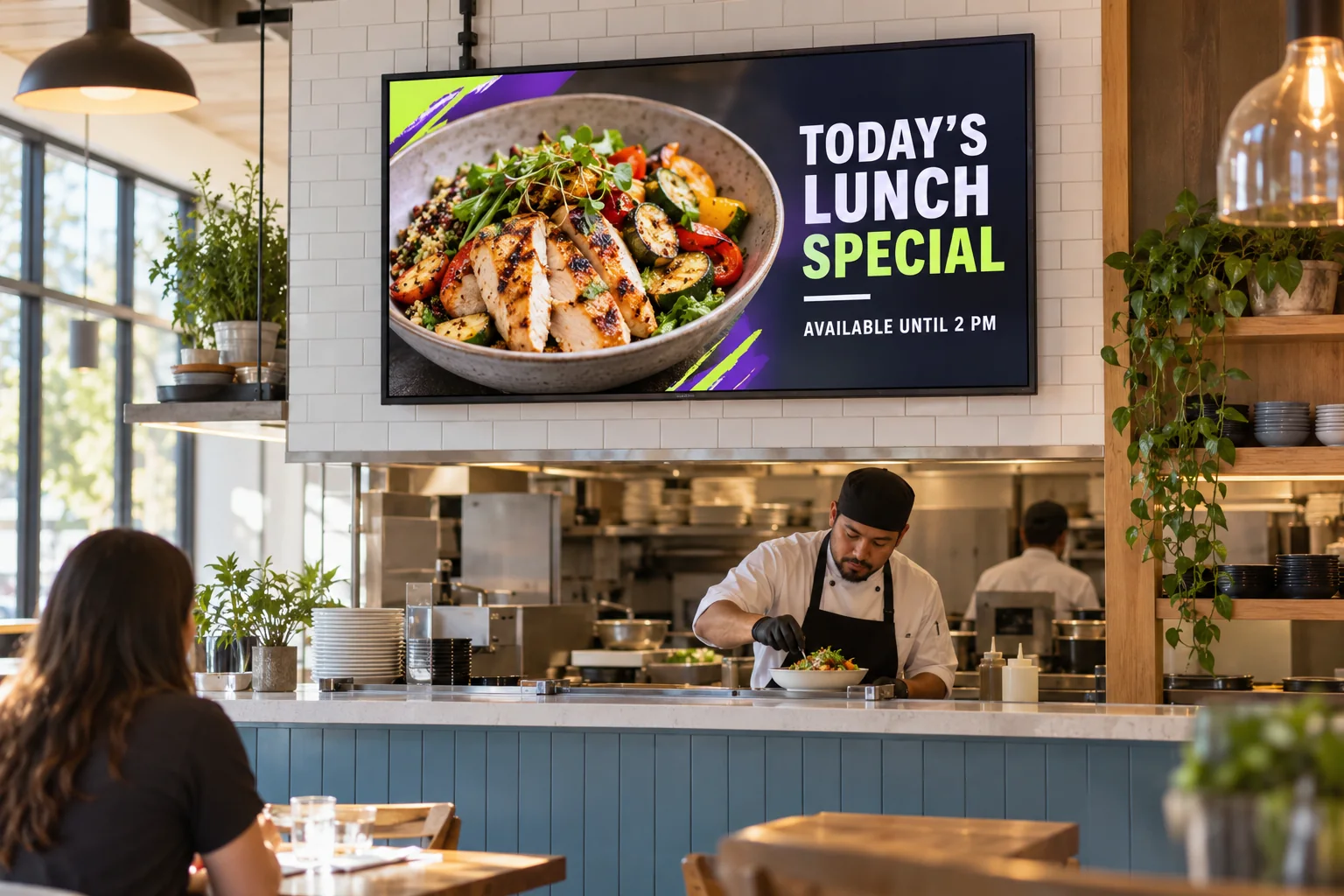
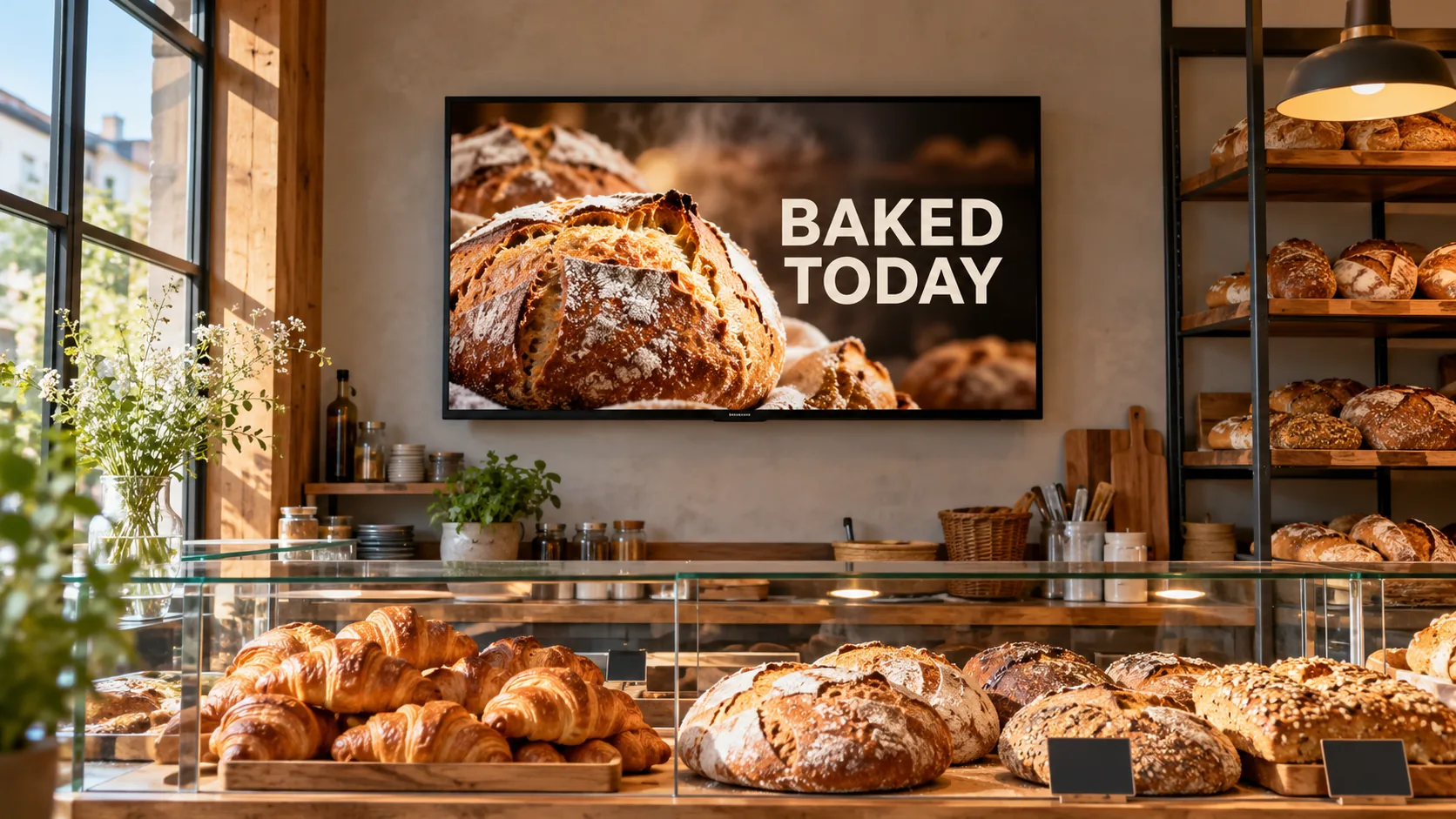
- Bakery window display Show today's bakes before guests step inside.
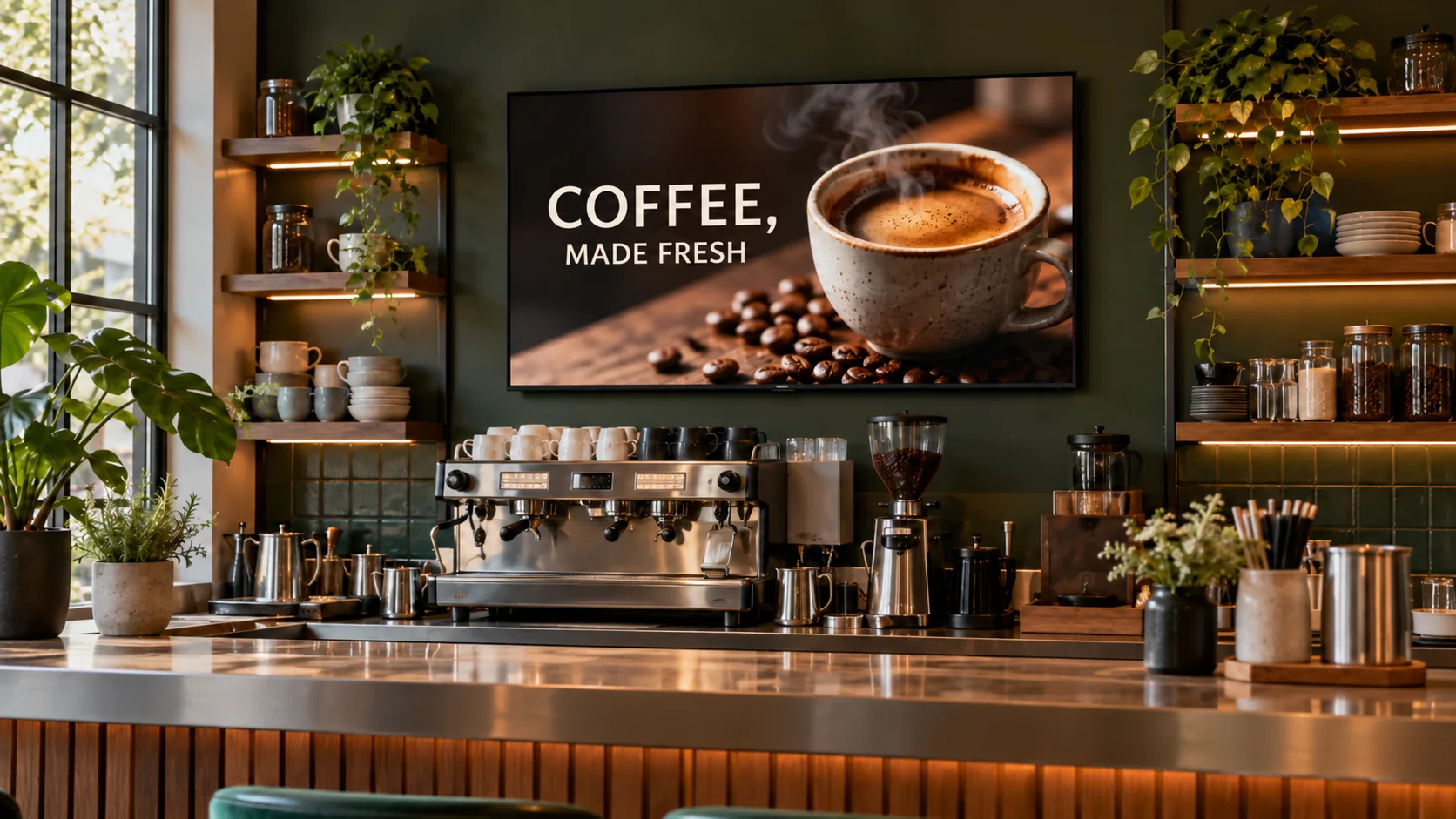
- Coffee bar display Give the drinks menu a clear place.
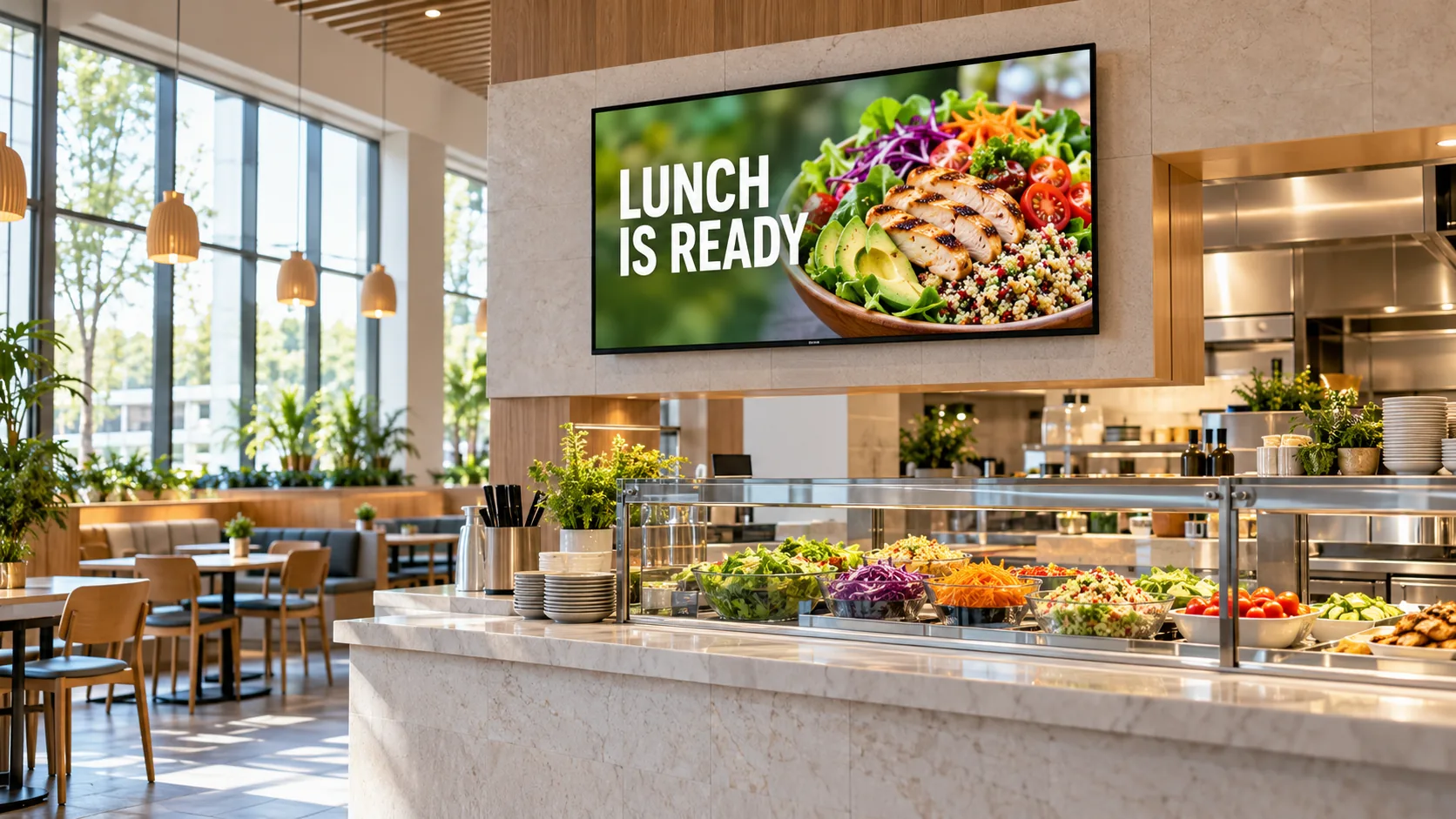
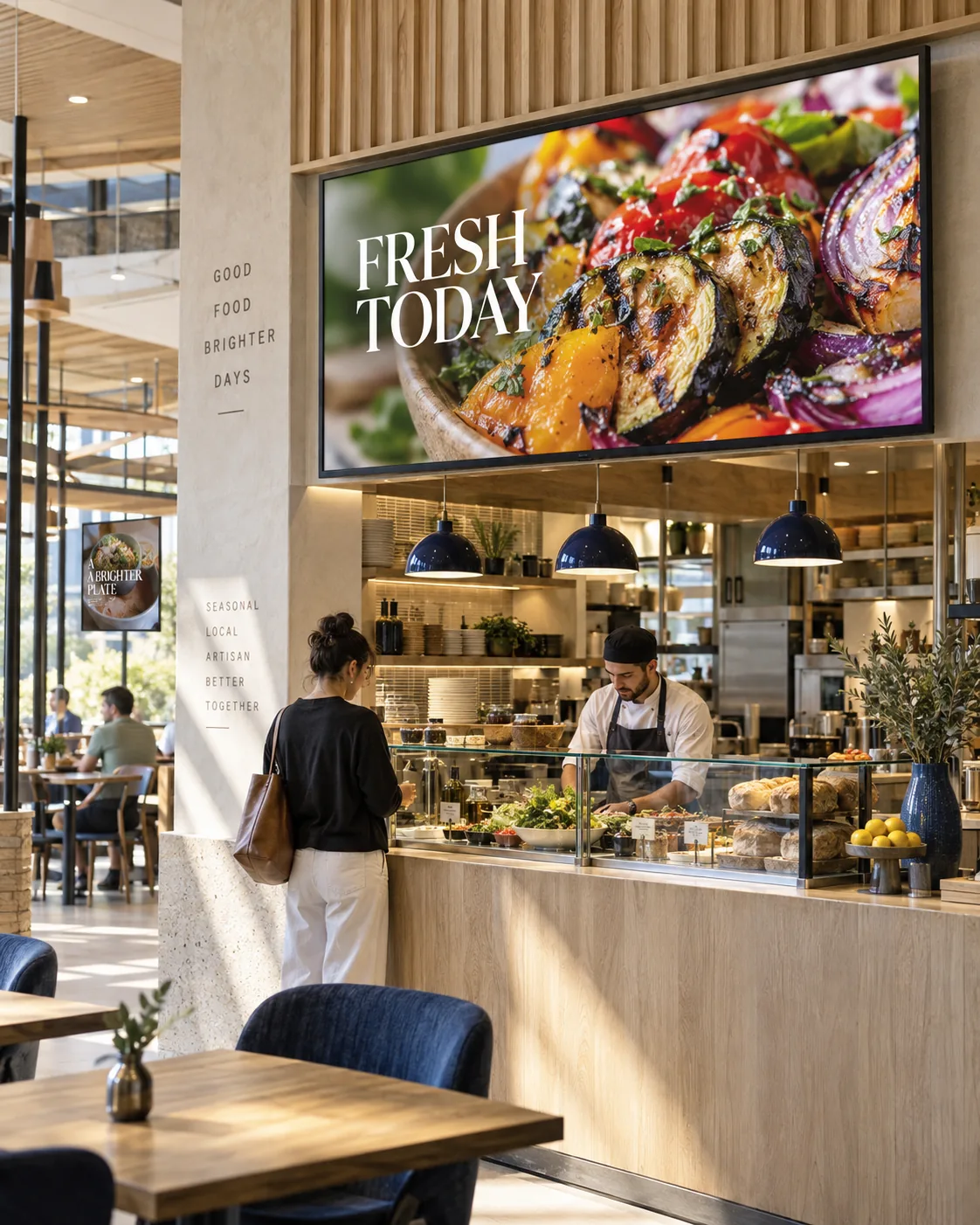
- Food-court lunch display Help guests see the lunch choices.
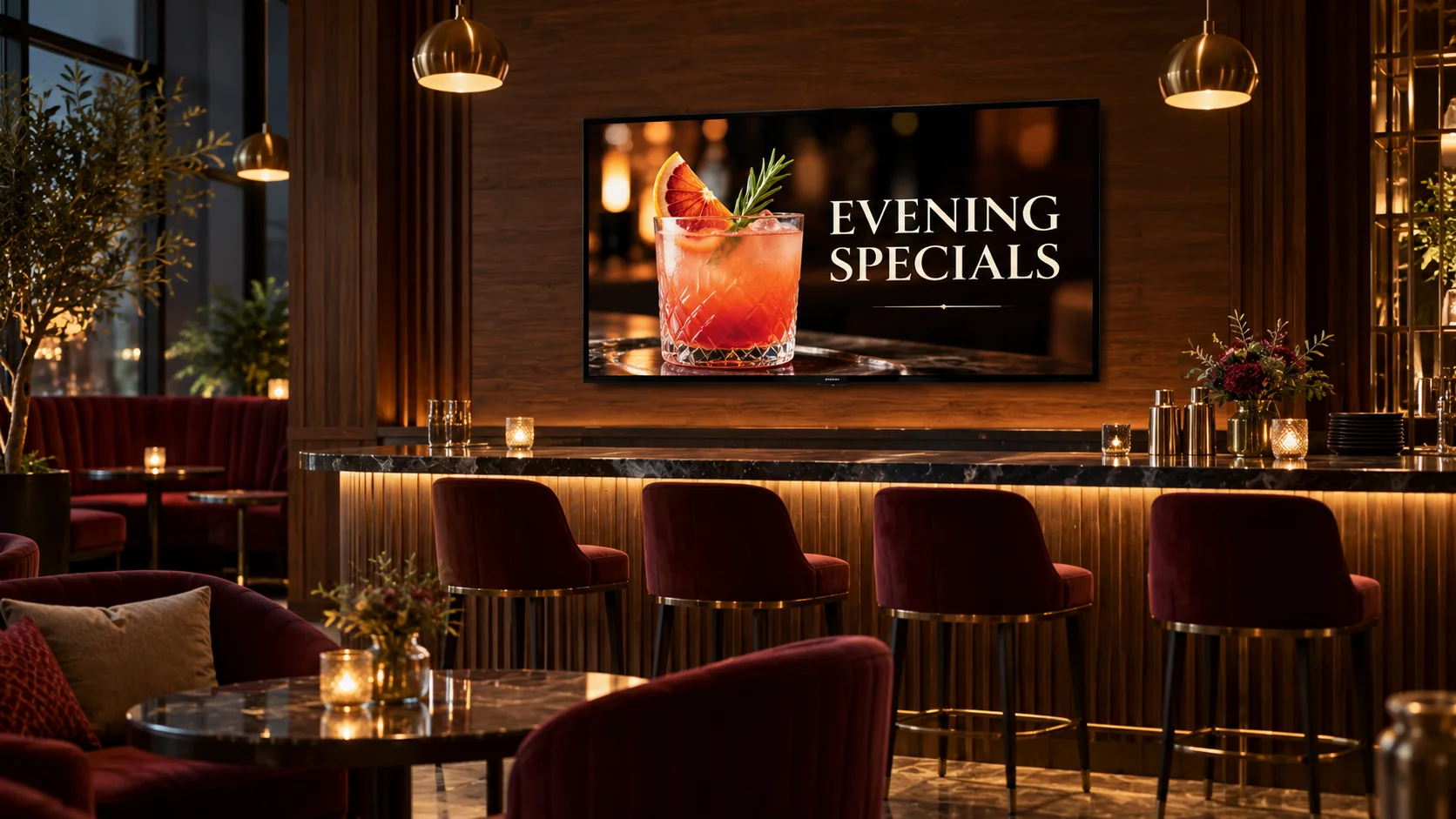
- Lounge specials display Put the evening offer on screen.
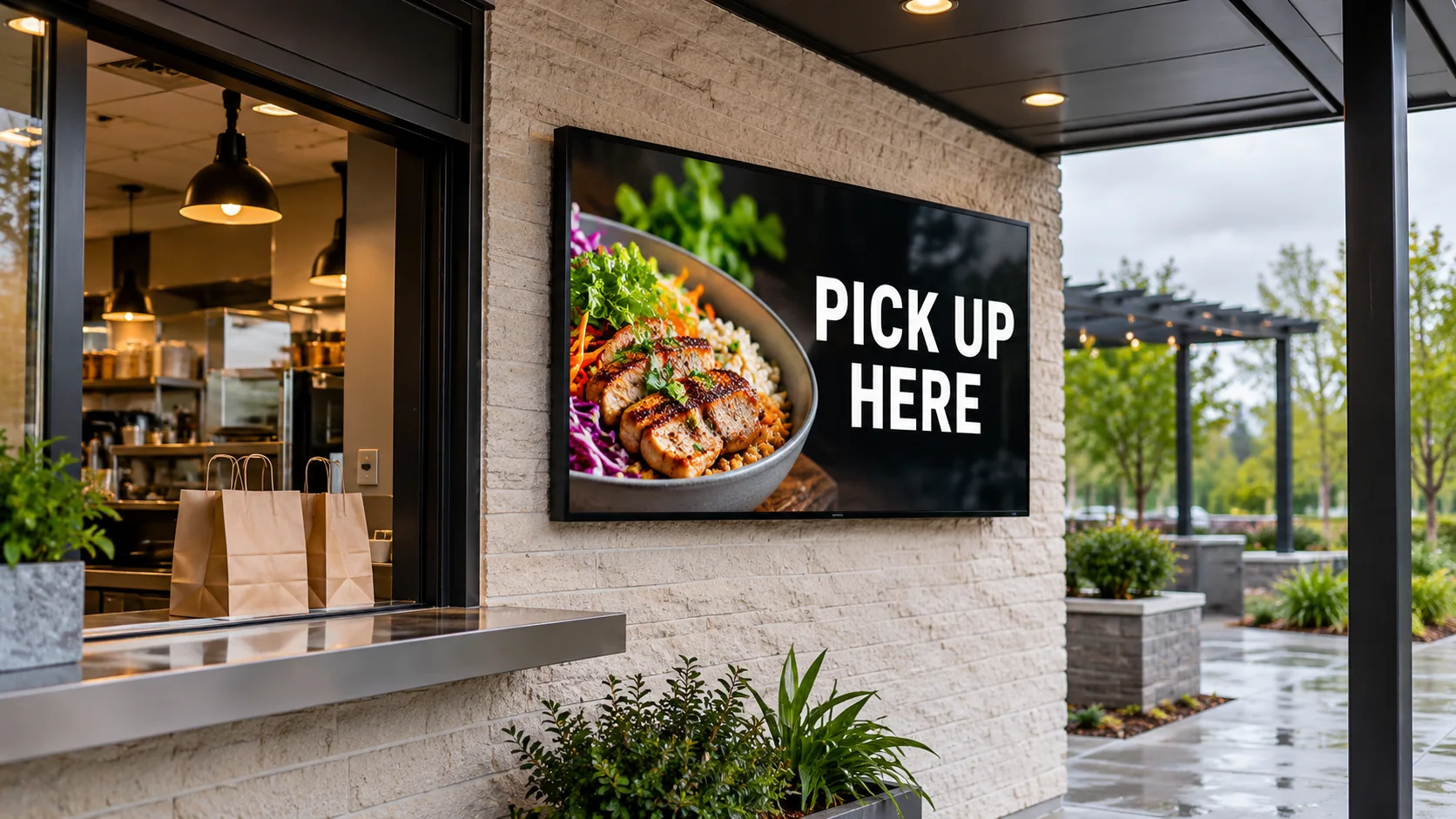
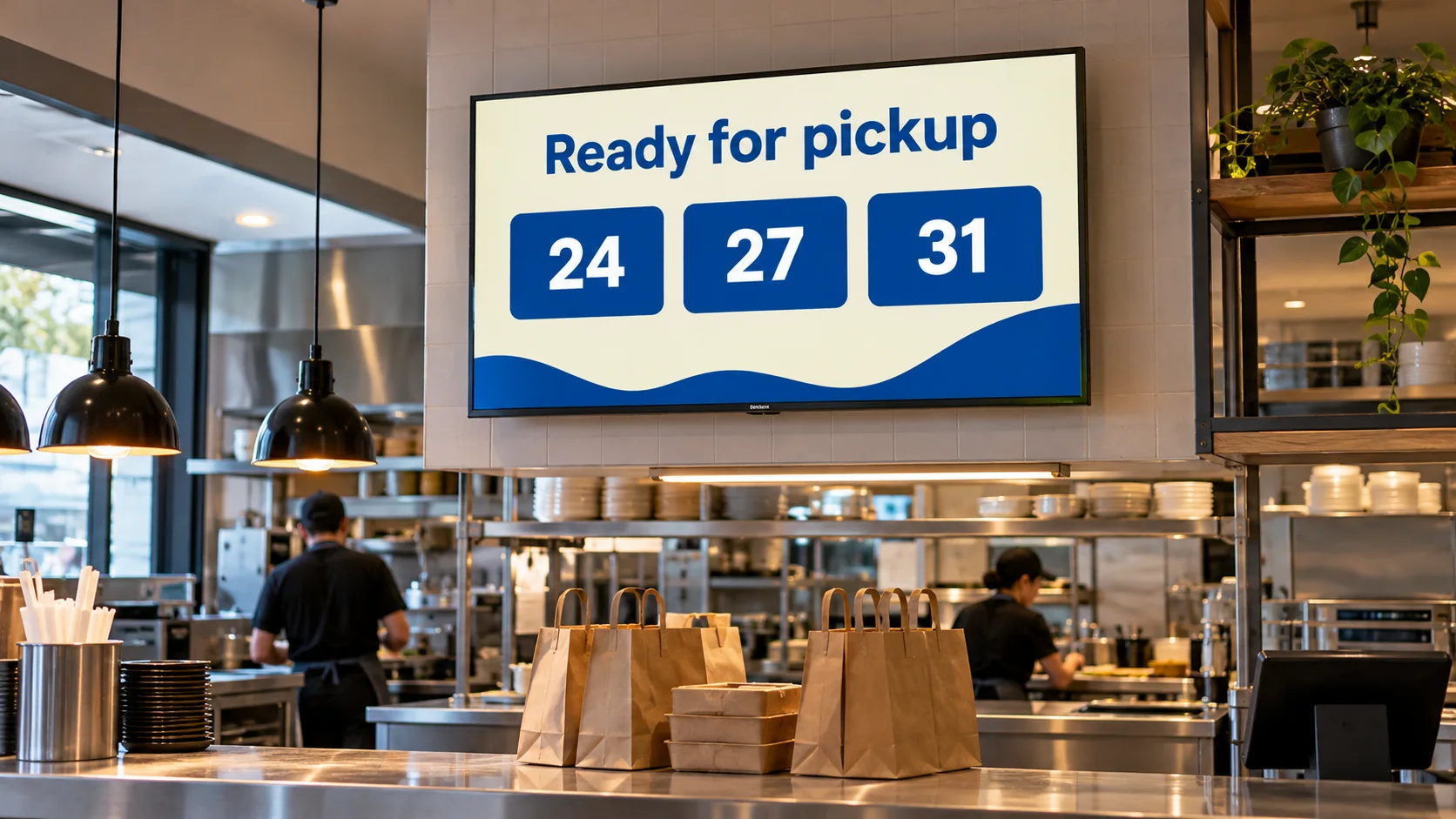
- Takeaway pickup display Show guests where to collect an order.
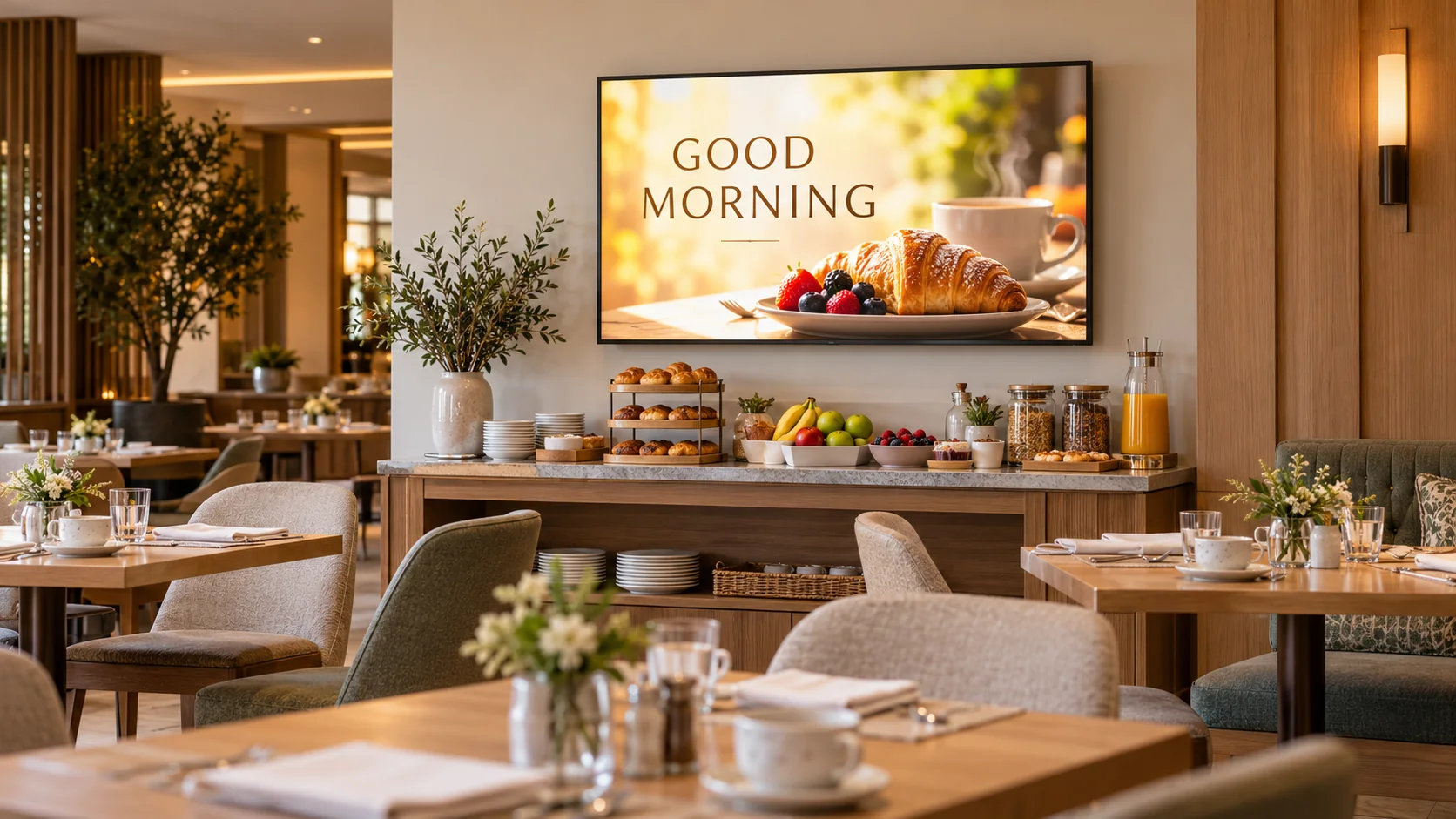
- Hotel breakfast display Welcome guests to breakfast.
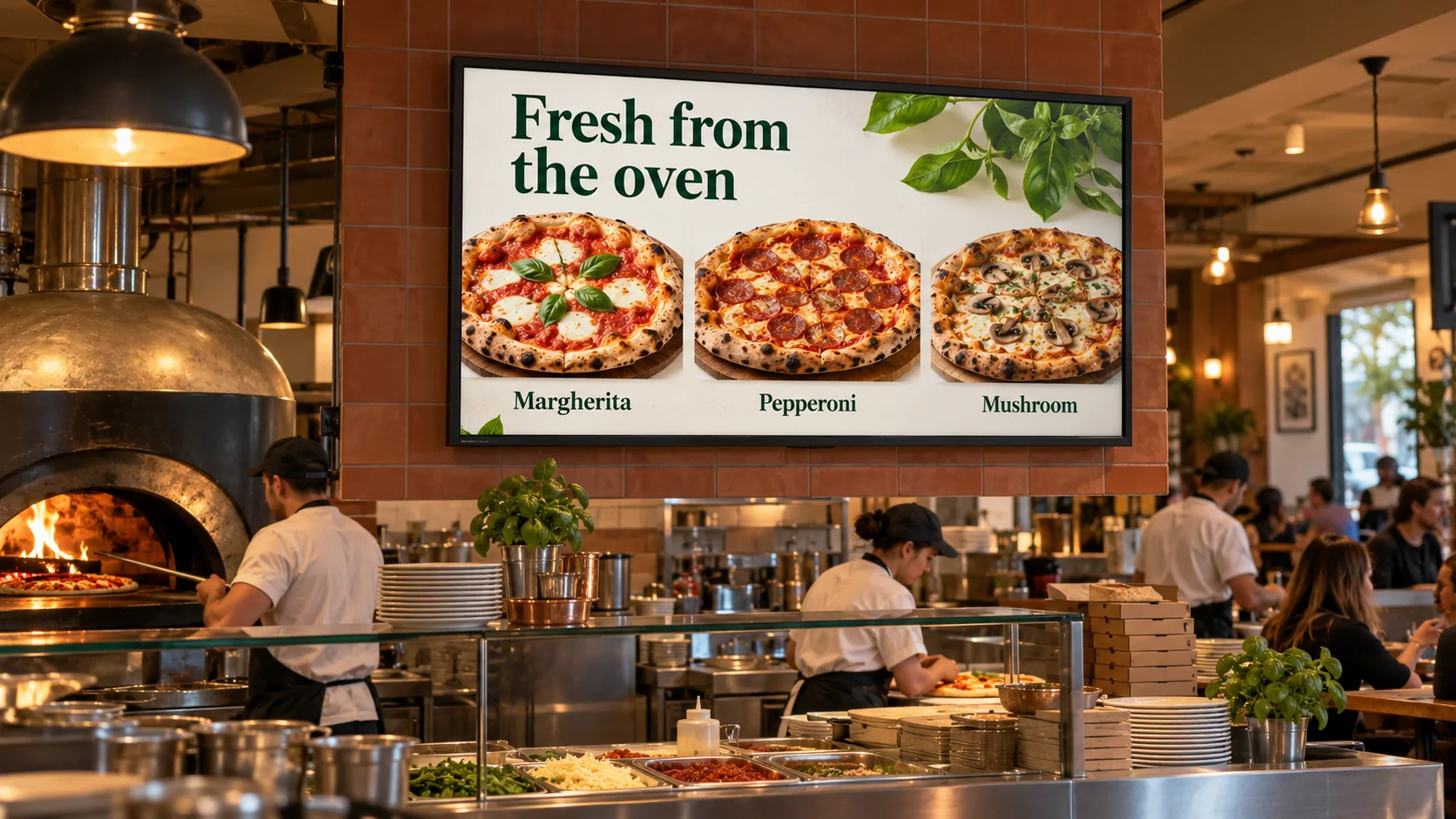
- Pizzeria menu screens Show the pizza choices above the counter.
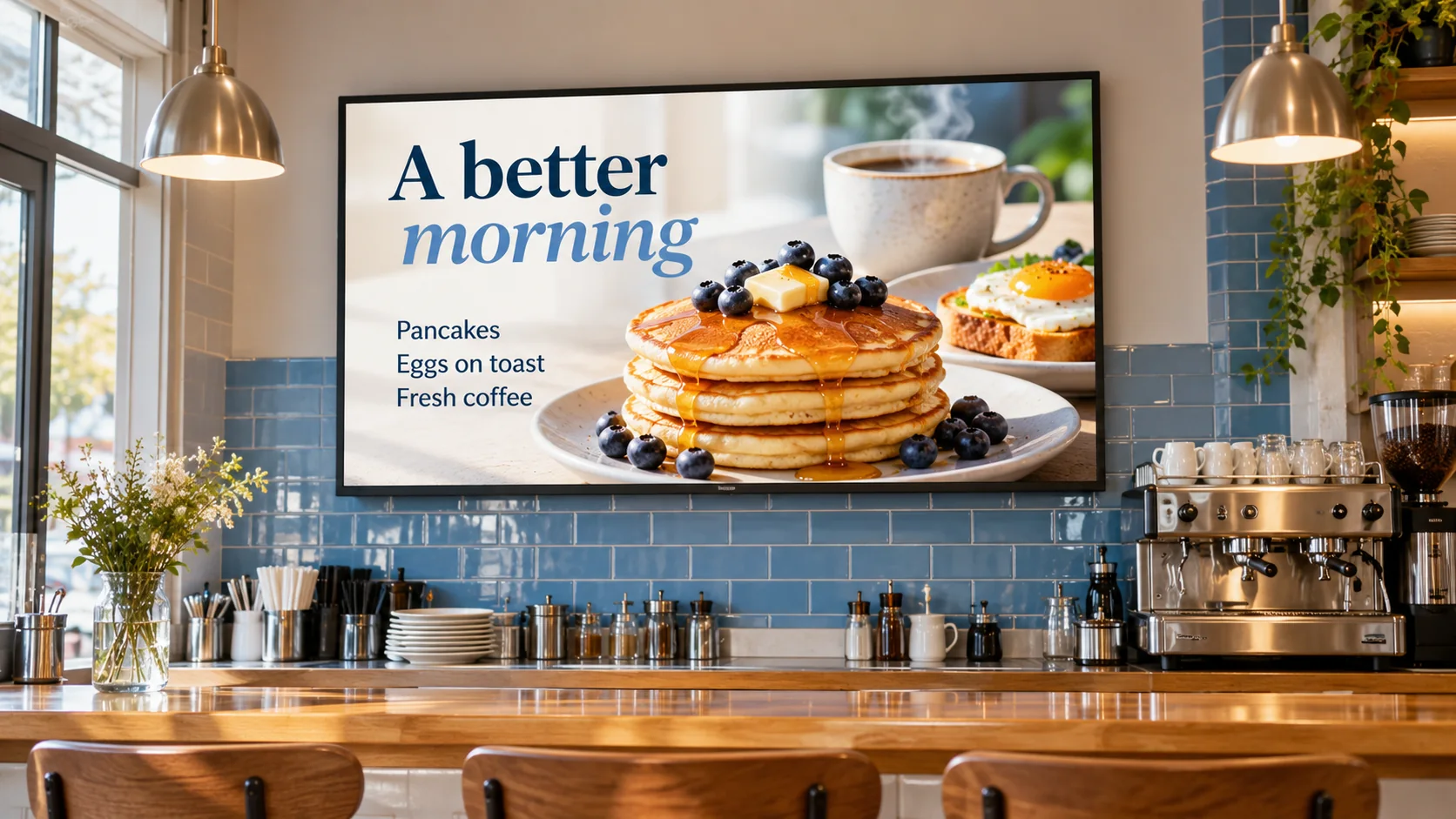
- Breakfast menu displays Put breakfast choices where guests can see them.
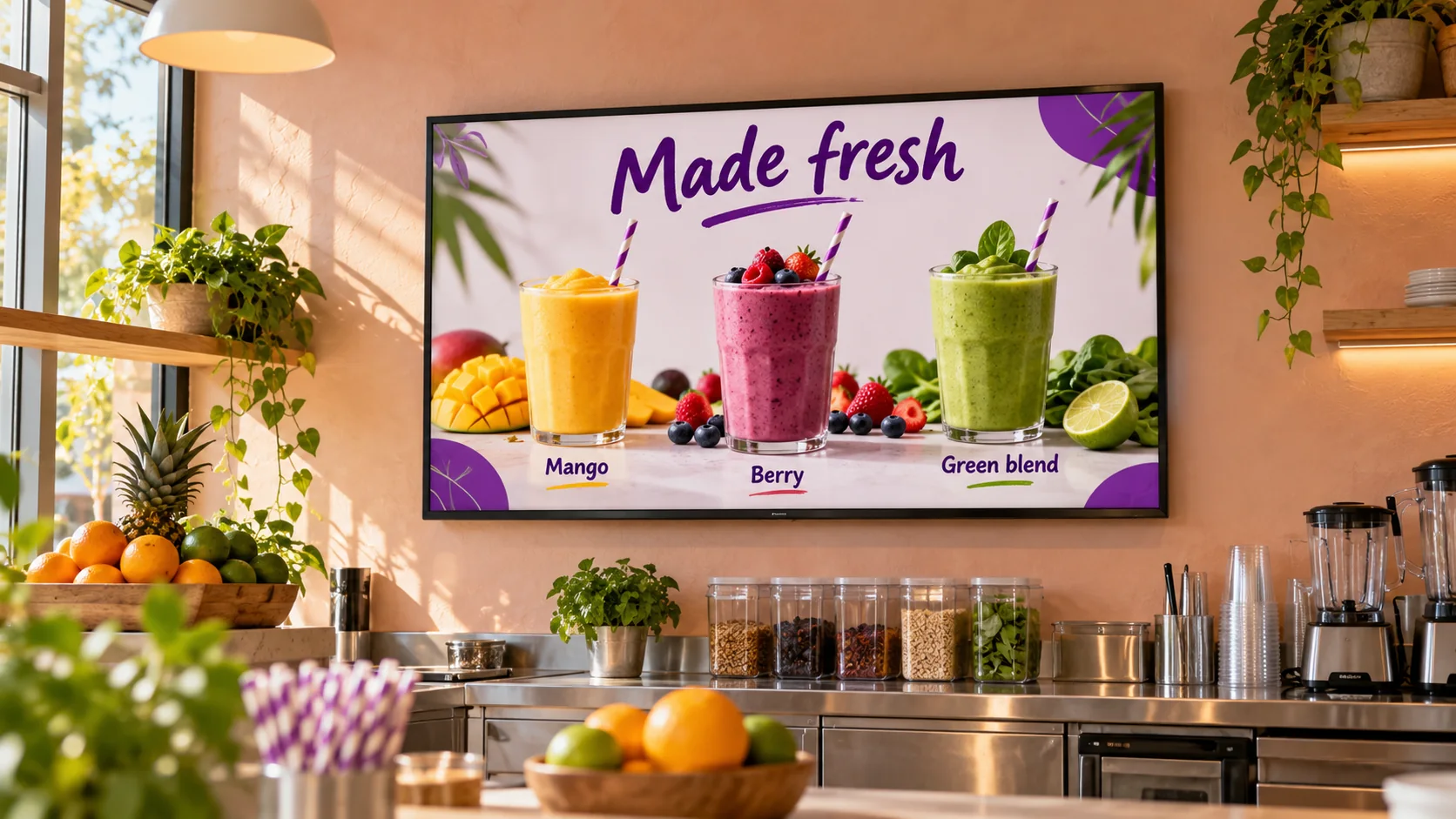
- Smoothie bar menus Give each drink a clear place on the menu.
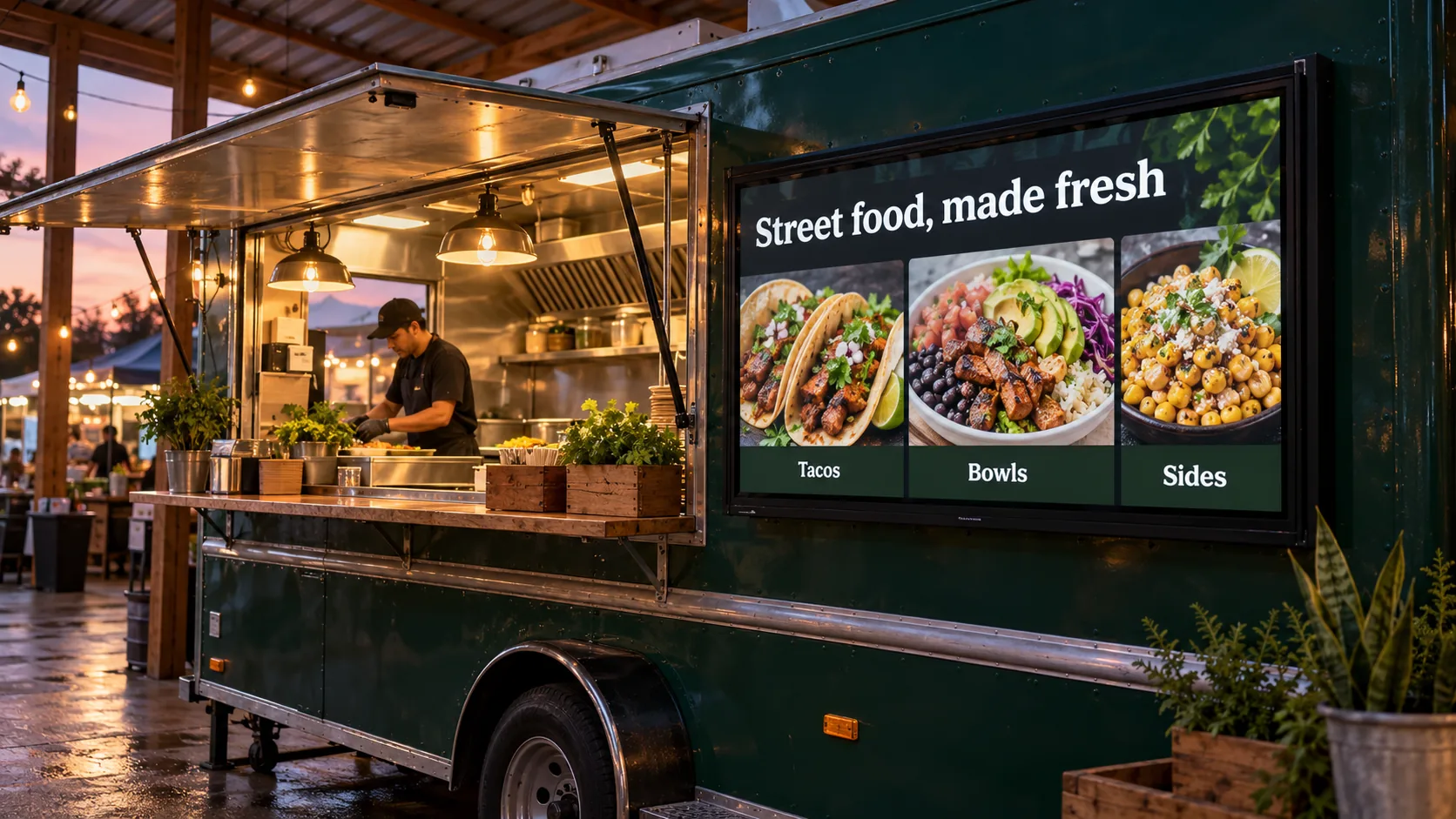
- Food-truck menu display Show the menu beside the service hatch.
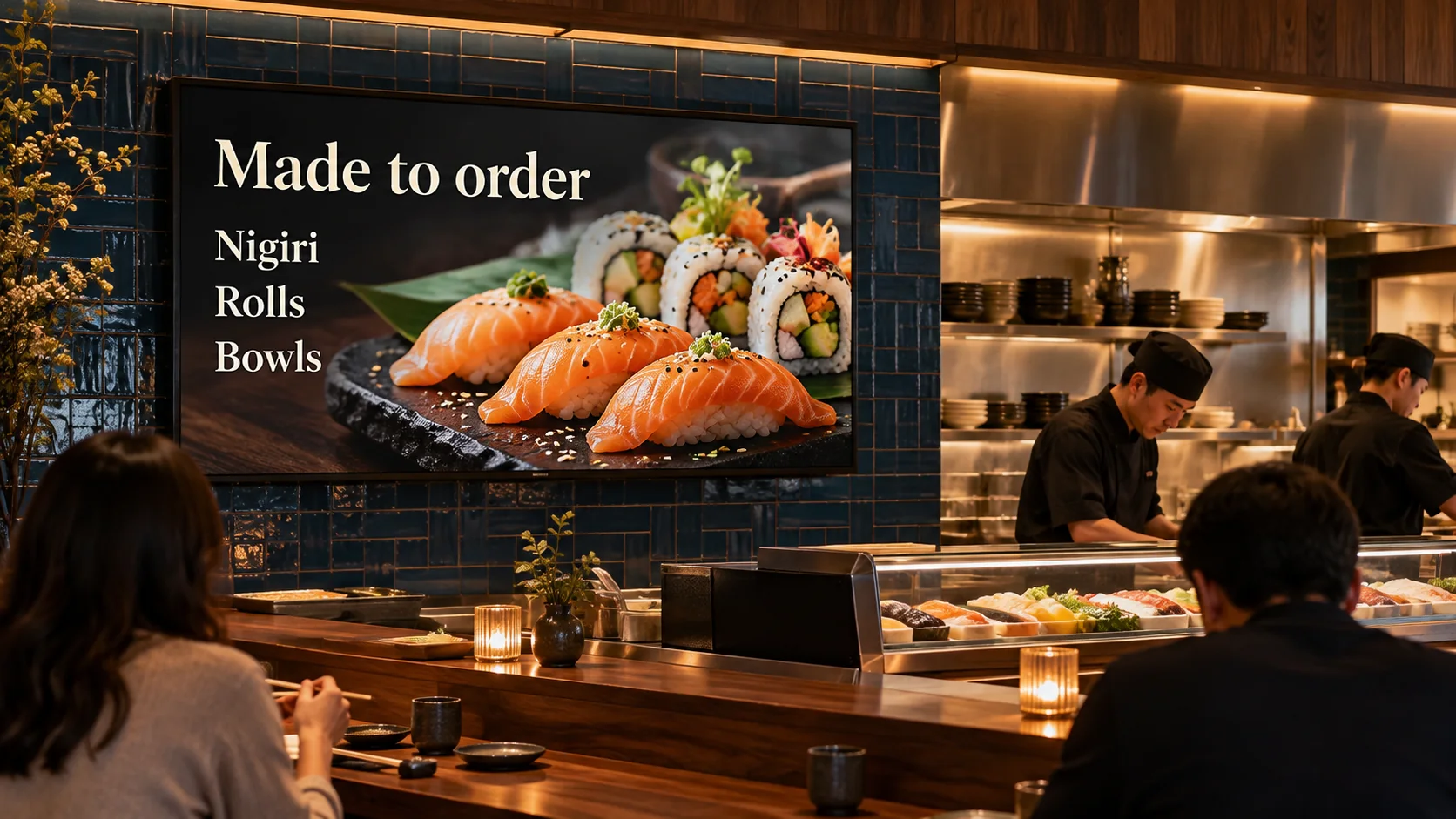
- Sushi counter menus Give each sushi choice a clear place on screen.
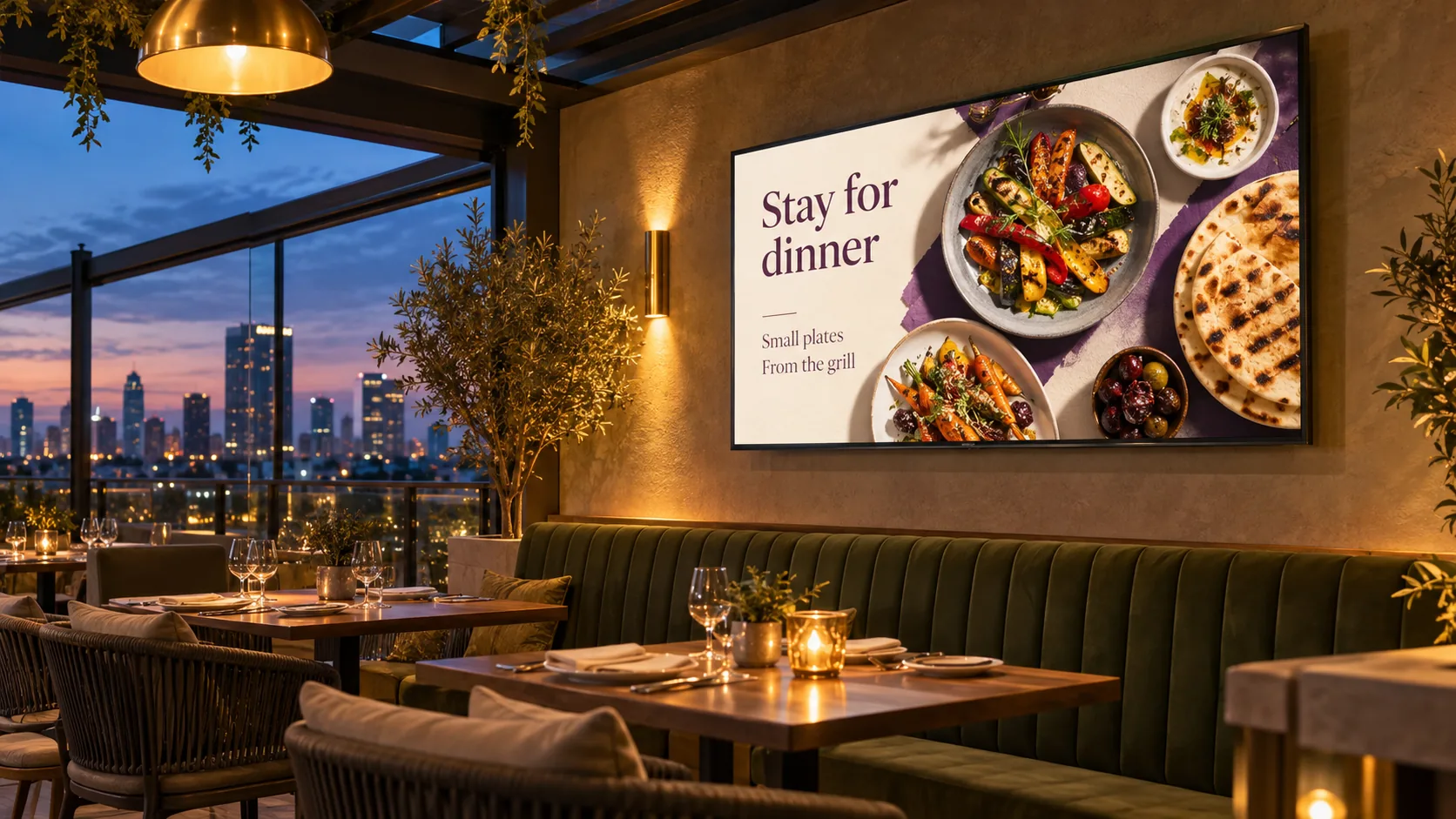
- Rooftop dining menus Show the dinner choices in the dining space.
- Ice-cream menu screens Let guests see the flavours before they order.
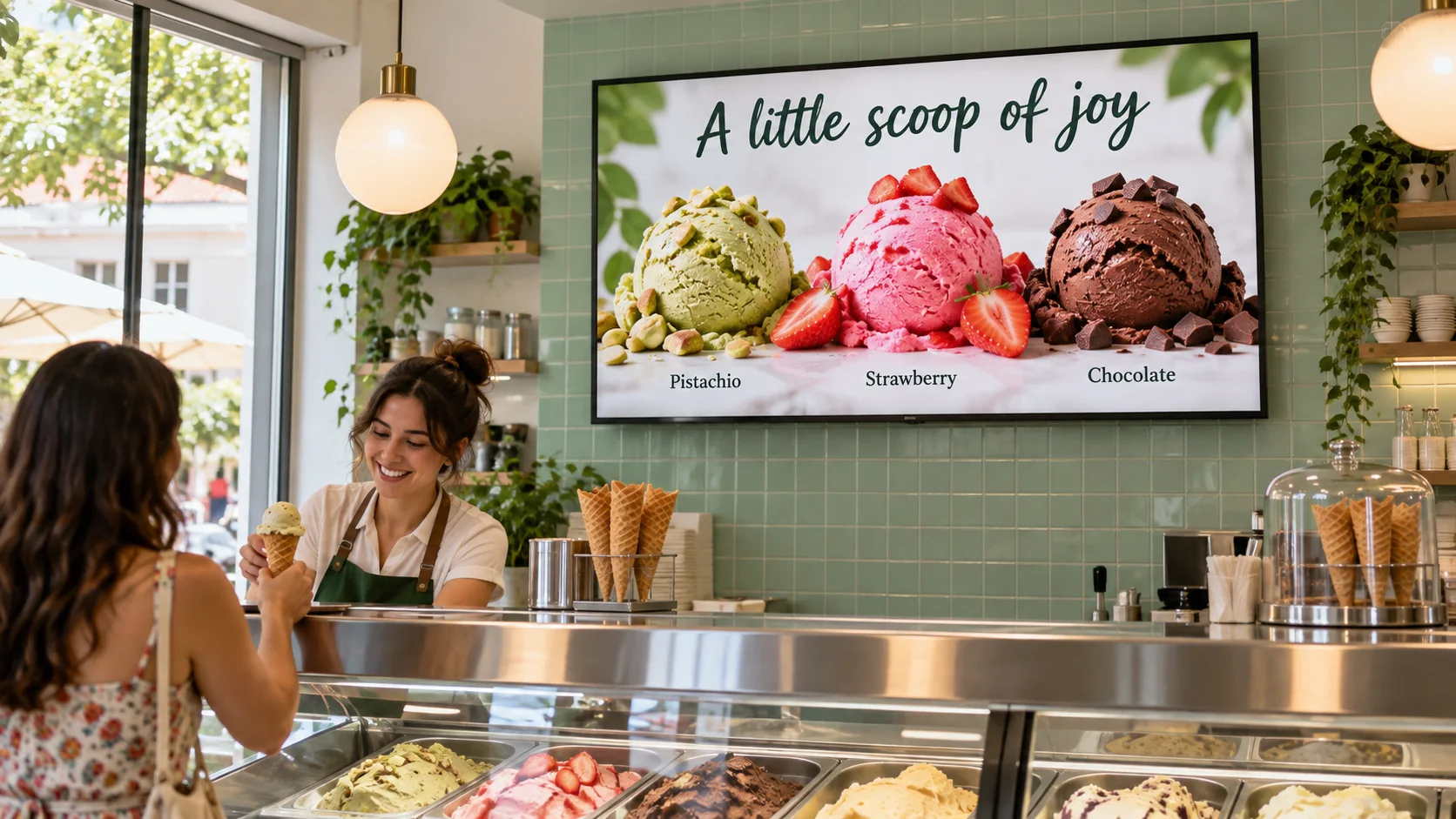
- Pickup information Give pickup information a visible place.
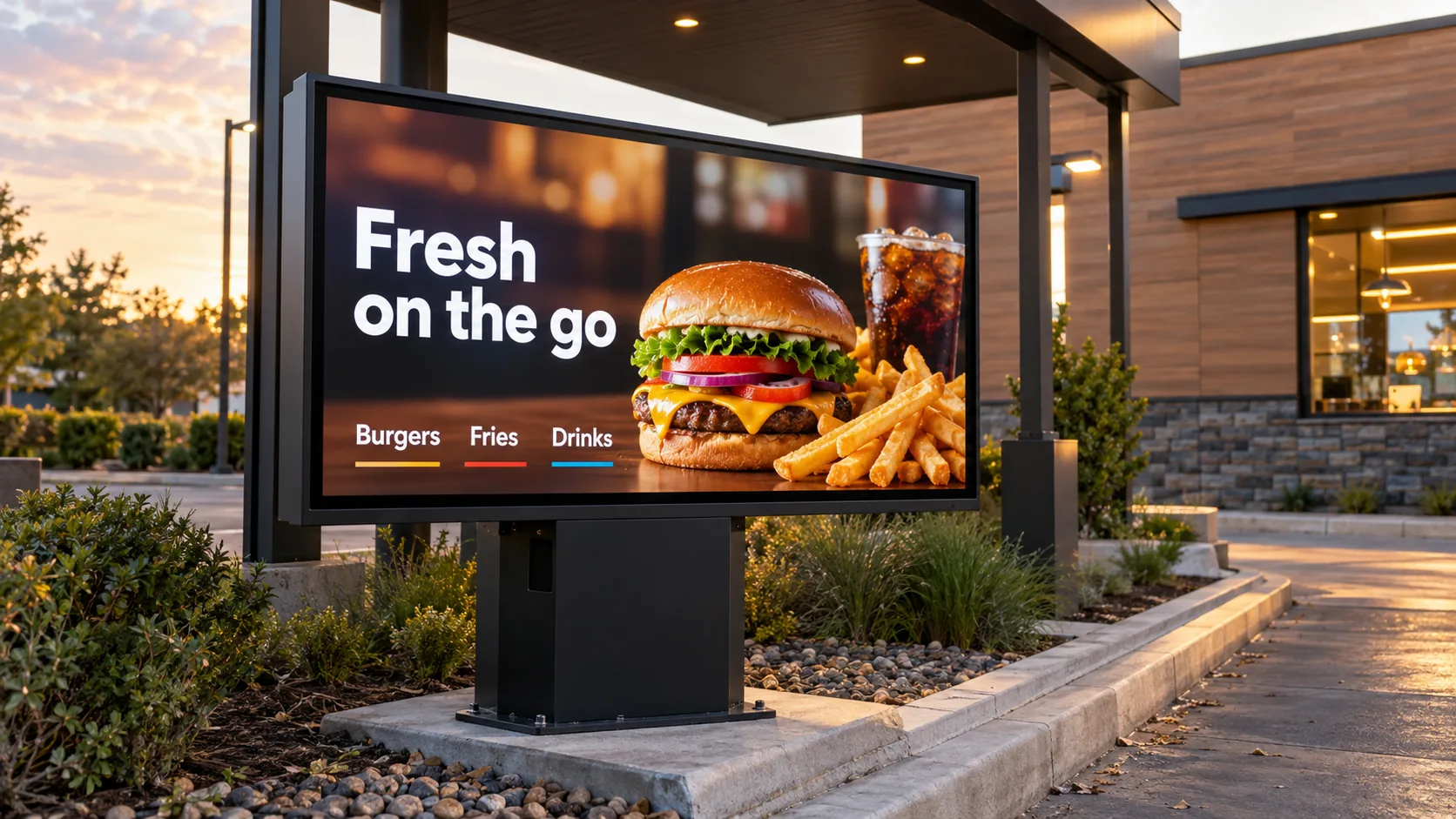
- Drive-through menus Put the menu where drivers can see it.
Track whether the screen action helped.
Compare unavailable orders, item mix and revenue contribution with your baseline.
Measurement plan
Review orders
What to measure
- Attempts to order unavailable items
- Which items were ordered
- Revenue contribution
Record the update
What to record
- Approved times
- Where the update appeared
Choose a baseline
Comparison period
Check the evidence
Check what changed, not just what played.
Record each update, then compare the data with your baseline.
Need a hand with your screens?
Talk to the ScreenFire team about your content, screens and supported connections.